
Loading samples
First of all, to load samples, we need to have some. To illustrate, we’ll use this nice LSDj sample pack from the Freesound project kindly provided by starpause Download the pack and unzip it to a new folder on your card. Then put it into your DS and start NitrousTracker.
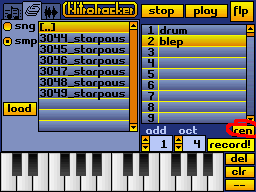
To load some samples, click on the hard disk icon.
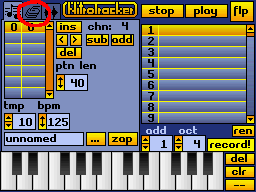
Then select "smp". This will cause that only samples are displayed in the browser.
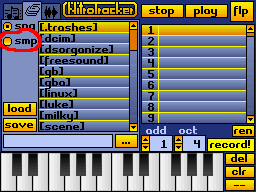
Now go to the folder where the sample pack lies. When you load a sample, it is loaded into the currently selected intrument bank, i.e. the highlighted item in the list on the right. Make sure, the first item is selcted, then tap on the file starting with "3044" and tap "load".
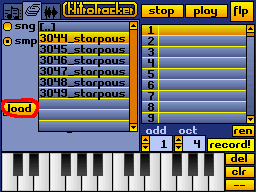
Now select the second sample bank and the sample starting with "3049" and tap "load" again.
You can play around on the keyboard to listen to the samples. Since their names are not very descriptive, you might want to rename them.
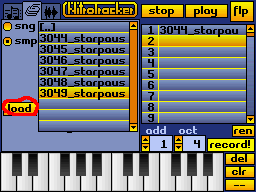
To do this, press the "ren" button under the instrument list and enter the new name with the typewriter that appears. (I use the old-fashioned term typewriter to differentiate the (computer) keyboard from the (musical) keyboard.)
You can record your own samples through the internal microphone as well as through a microphone connected to the microphone jack.
WarningOn the DS and DSi family of consoles, the microphone jack is proprietary. As such, only external microphones which are part of dedicated accessories will work - alternatively, you may be able to solder your own adapter.
The 3DS family of consoles uses a standard TRRS headphone jack, which have standardized adapters and splitters.
To record a sample, select an empty instrument on the right, then go to the sample tab and tap the microphone button.
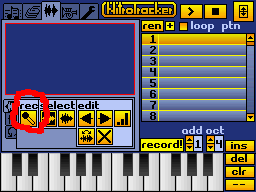
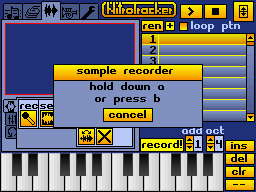
There are two recording modes:
- Quick recording: Press and hold A
- Hands-free recording: Push B to start, and push B again to stop
To review what you recorded, select octave 4 in the "oct" number box on the lower right of the screen, and then press and hold the leftmost keyboard button. This will play back your sample at the note C-4, which is the original recording frequency. After cutting and normalizing your recorded sound, you'll have a brand new instrument!
NitrousTracker supports .WAV files for importing samples. 8-bit and 16-bit files are supported well; 24-bit files can also be imported, but more slowly. Stereo samples will be downmixed to mono.
If your .WAV file carries loop point information (via the smpl chunk),
it will also be transferred to the sample.